
Everyday uses
Set up a work line
Give one number a name, business hours, a voicemail greeting and call recording, so work calls arrive when you choose and nothing personal is mixed in.
Before you start
- A number to use for work (your primary or an extra one)
Steps
1Name the number
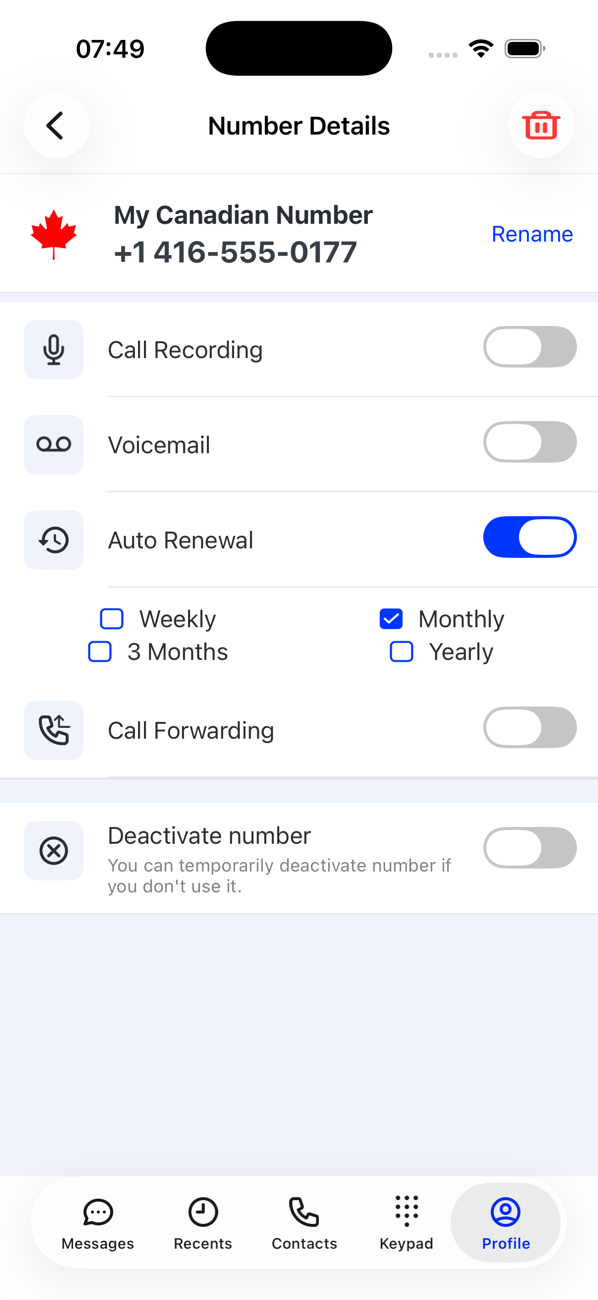
On your Profile tap the number, then Rename and call it Work or the name of your business. The name shows on your Profile and in the number switcher, so you always know which line you are on.
2Set business hours
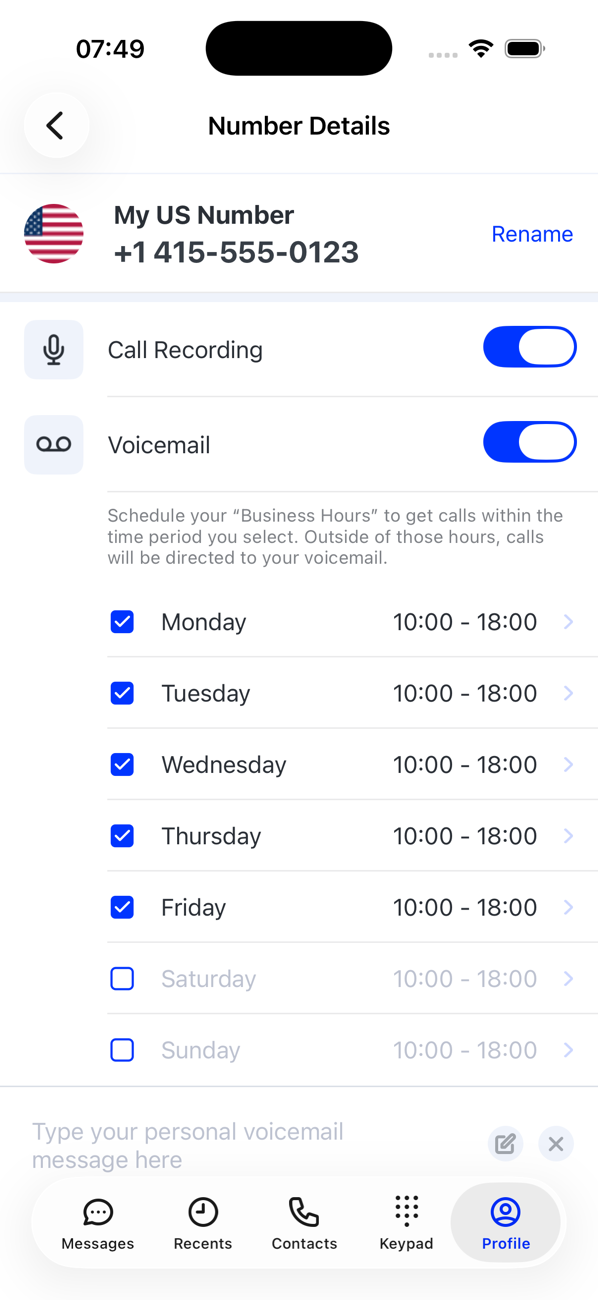
Switch on Voicemail, then turn on the days you work and set each day's hours (the default is 09:00–17:00). Calls outside those hours go to voicemail instead of ringing. Tap Update Business Hours.
3Write a greeting
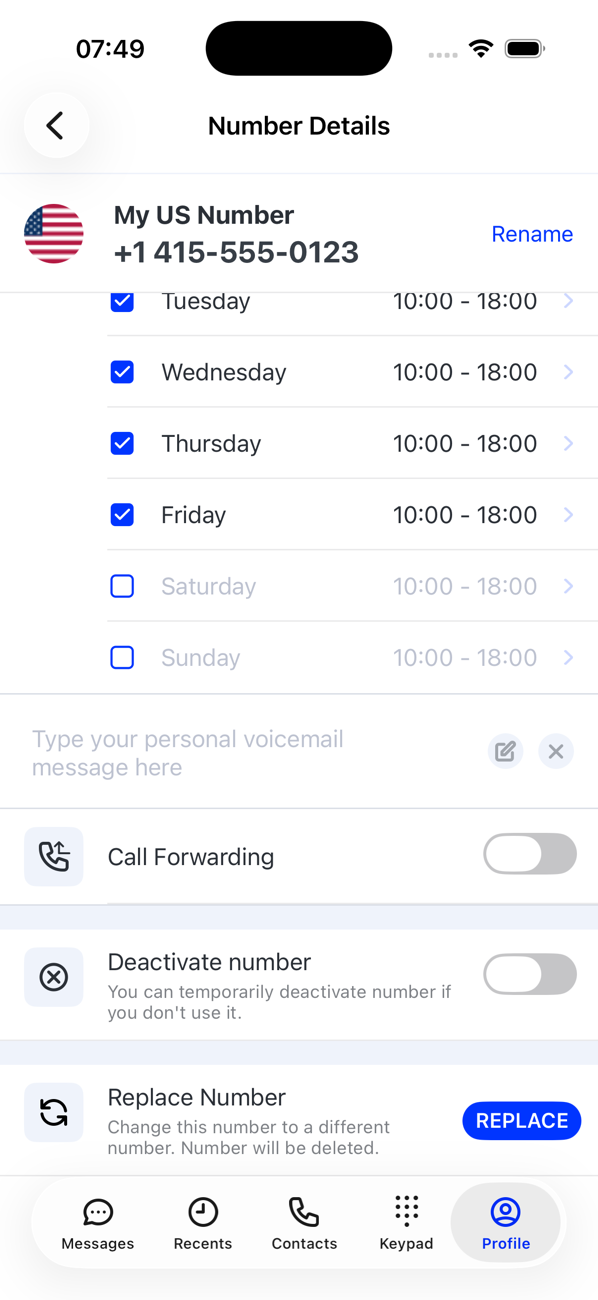
In the voicemail message box type what callers should hear, for example your opening hours and when you will call back, then Save.
4Turn on call recording, if you need it
Switch on Call Recording to be able to record calls from this number. Check the recording laws where you and your callers are, and tell callers when you record.
5Work from the right number
On Keypad, Messages and Recents, pick the work number in the switcher at the top. Its calls, texts, voicemails and recordings stay separate from your other numbers, and Expenses shows what each one costs.


Good to know
- Forward the work line to a colleague's phone while you are away with Call Forwarding.
- Deactivate the number over a holiday and reactivate it when you are back. A deactivated number takes no calls or messages at all; if you would rather callers reach voicemail while you are away, leave it active and use voicemail with business hours instead.