
Calls
Record a call
Turn call recording on for a number, then record any part of a call. Recordings are saved under Recents.
Before you start
- A number of your own that can make calls
Steps
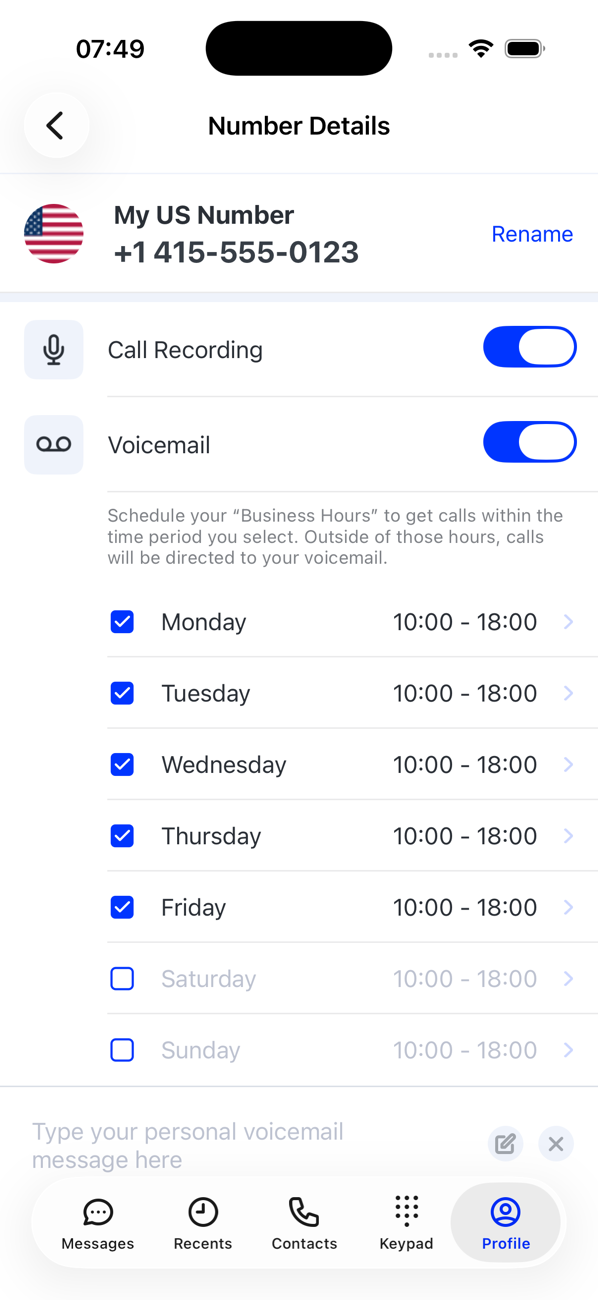
1Turn recording on for the number
On your Profile tap the number, then switch on Call Recording in its settings. The number card now shows the recording icon.
2Start recording during a call
Make or take a call from that number and tap record. The screen shows recording … while it runs.
3Pause, resume or stop
Tap again to pause (recording paused) and resume whenever you like. Stopping saves what you recorded as one recording; recording again in the same call saves another.
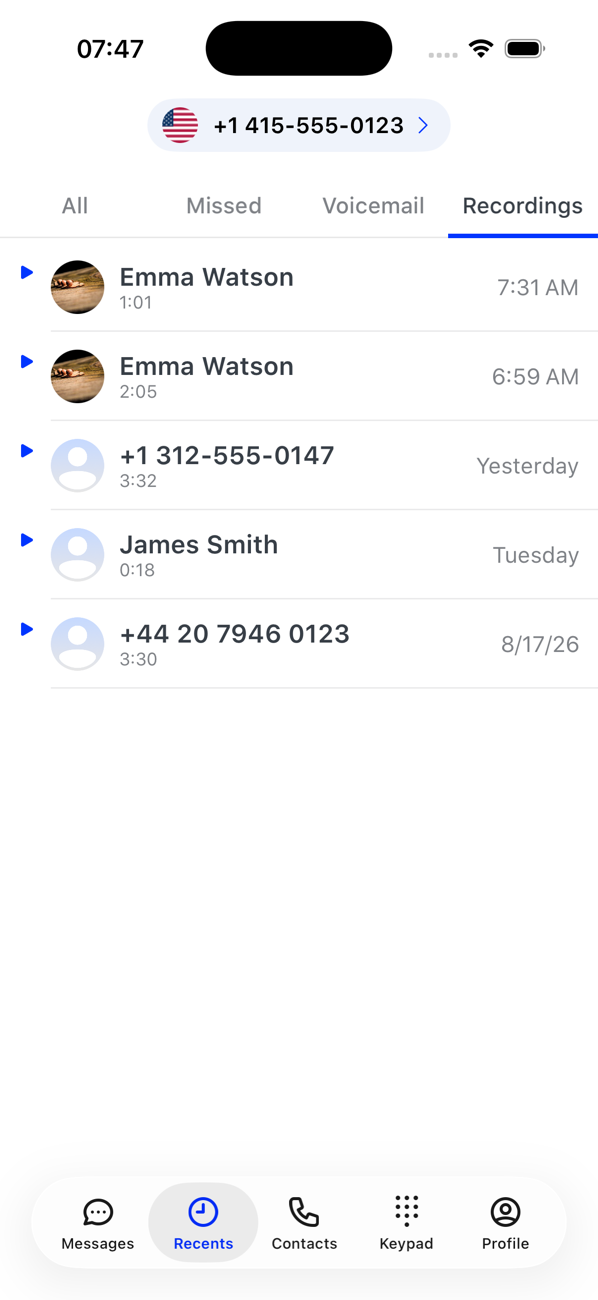
4Listen back
Open Recents → Recordings. Each recording shows the other party, its length and when it was made. Tap to play; a blue chevron marks one you have not played on this device yet.


Good to know
- Recording laws differ by country and region, and often require you to tell the other person. Know the rules that apply where you and they are before you record.
- When Call Recording is off for a number, the record button does not appear on its calls.