
Calls
Set up voicemail and business hours
Send calls to voicemail when you do not want to be disturbed, or only take calls during the hours you choose.
Before you start
- A number of your own that can make calls
Steps
1Switch voicemail on
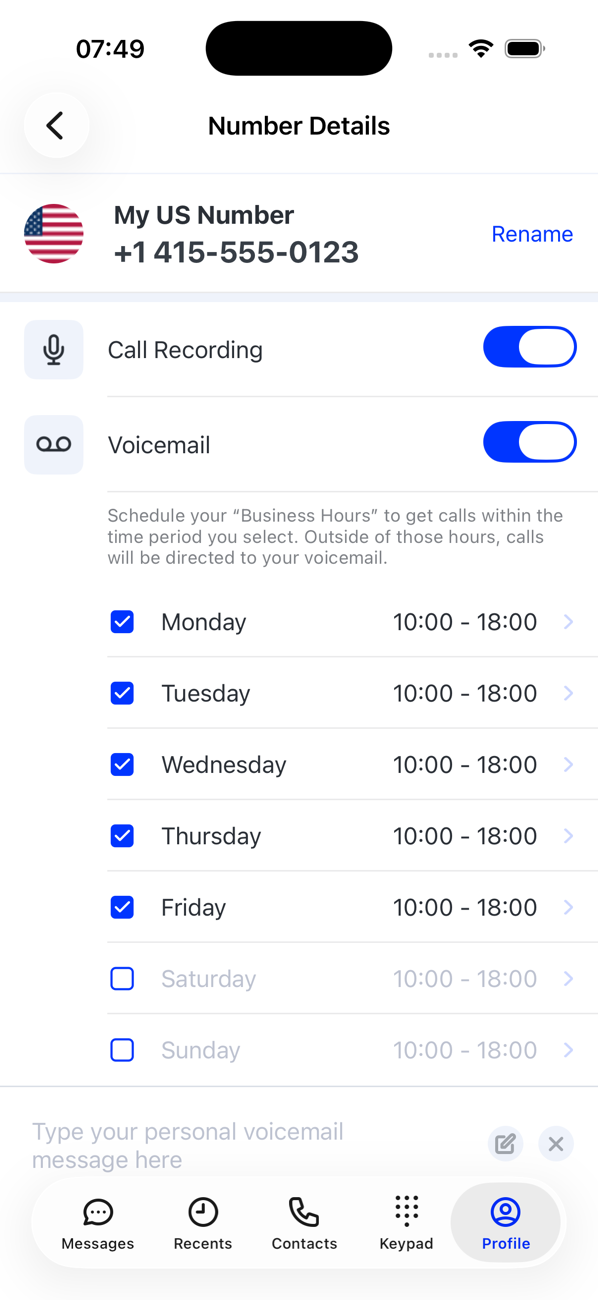
On your Profile tap the number, then switch on Voicemail. With voicemail on and no business hours set, every call to this number goes to voicemail.
2Add a personal greeting (optional)
In the box Type your personal voicemail message here, write the message callers should hear, then Save. The app confirms Voicemail message saved.
3Set your business hours
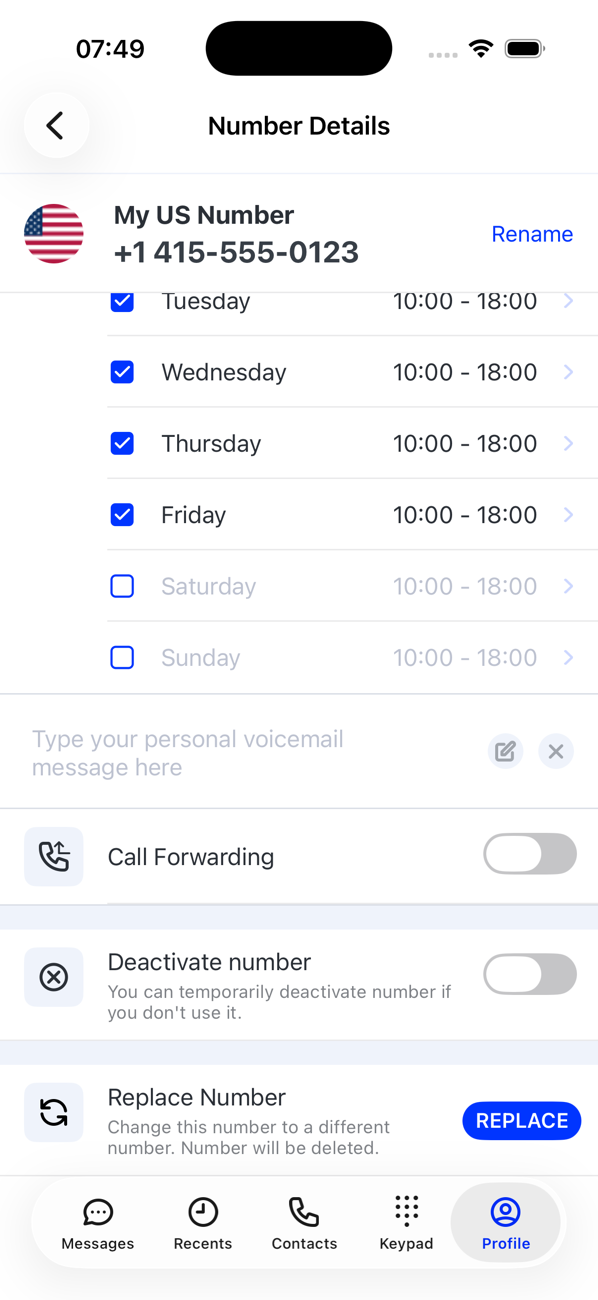
Turn on each day you want to receive calls. Each day starts at 09:00–17:00 in your local time; tap the range to change it and Confirm. Tap Update Business Hours to save.
4How calls behave now
Within your hours the number rings as normal. Outside them, and on days you left switched off, callers reach voicemail. New voicemails arrive as notifications and are listed under Recents → Voicemail.


Good to know
- Settings are per number: a work line can have business hours while a personal line rings at any time.
- Switch voicemail off to ring at all hours again; your hours are kept for next time.