
Account and settings
Manage notifications
Second Phone notifies you about calls, messages, voicemails and your numbers and coins. Allow notifications in your phone's settings, and review past ones from the bell on your Profile.
Before you start
- A Second Phone account
Steps
1Know what to expect
You are notified about incoming calls, new messages, missed calls and new voicemails, and about your account: a number about to expire or expired, a renewal, a coin top-up, and a balance running low.
2Allow notifications
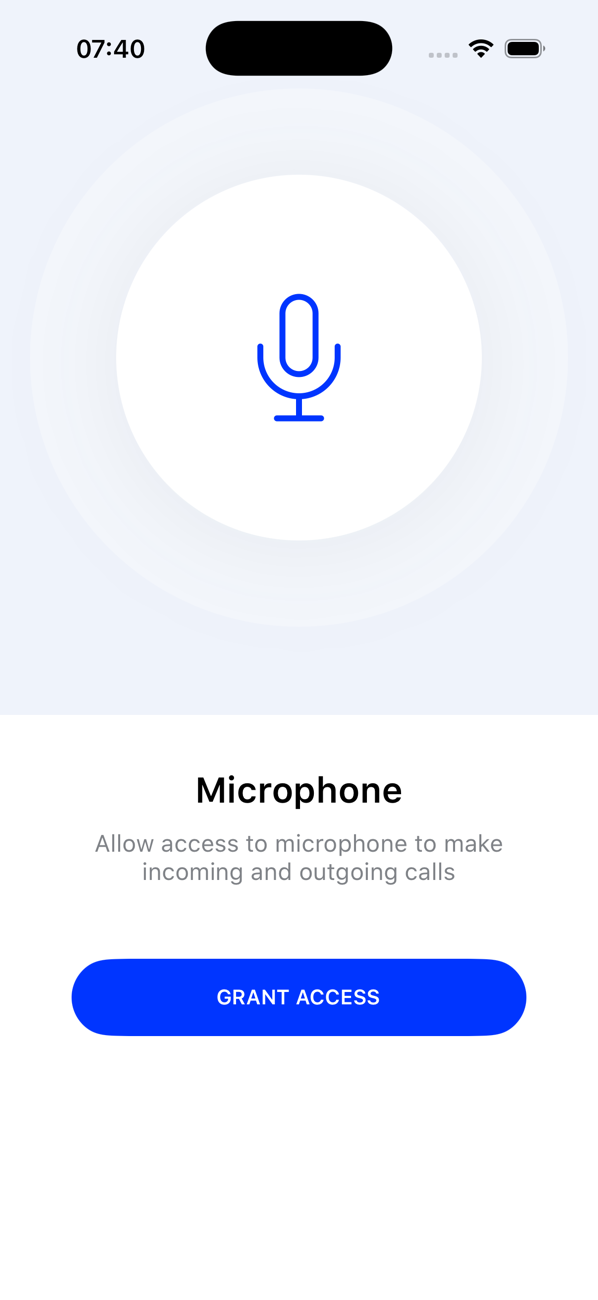
The app asks for permission when you first sign up. To change it later: on iPhone, Settings → Notifications → Second Phone; on Android, Settings → Apps → Second Phone → Notifications. Incoming calls also need the app to be allowed to use the microphone.
3Review past notifications
When you have notifications, a bell appears at the top of your Profile. Tap it to see the list; tapping an item takes you to the call, message or number it is about.
4Not hearing anything?
Check that a Focus or Do Not Disturb mode is not silencing the app, and that your phone has a data or Wi-Fi connection.

Good to know
- Notifications arrive in the language your phone is set to.
- Turning notifications off does not stop calls or messages; you simply will not be alerted to them until you open the app.