
Account and settings
Create a private Second Phone contact
Second Phone contacts live only inside the app, separate from your phone's address book.
Before you start
- A Second Phone account
Steps
1Open Contacts
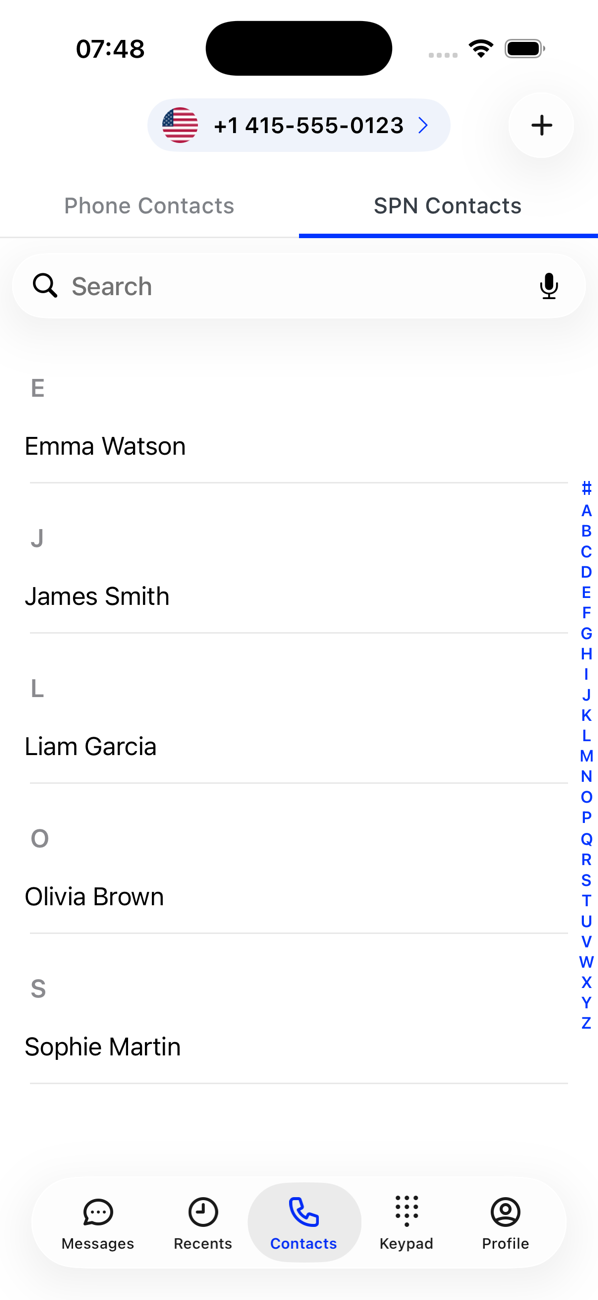
Tap Contacts and choose SPN Contacts. (Phone Contacts shows your phone's address book once you allow access.)
2Add a contact
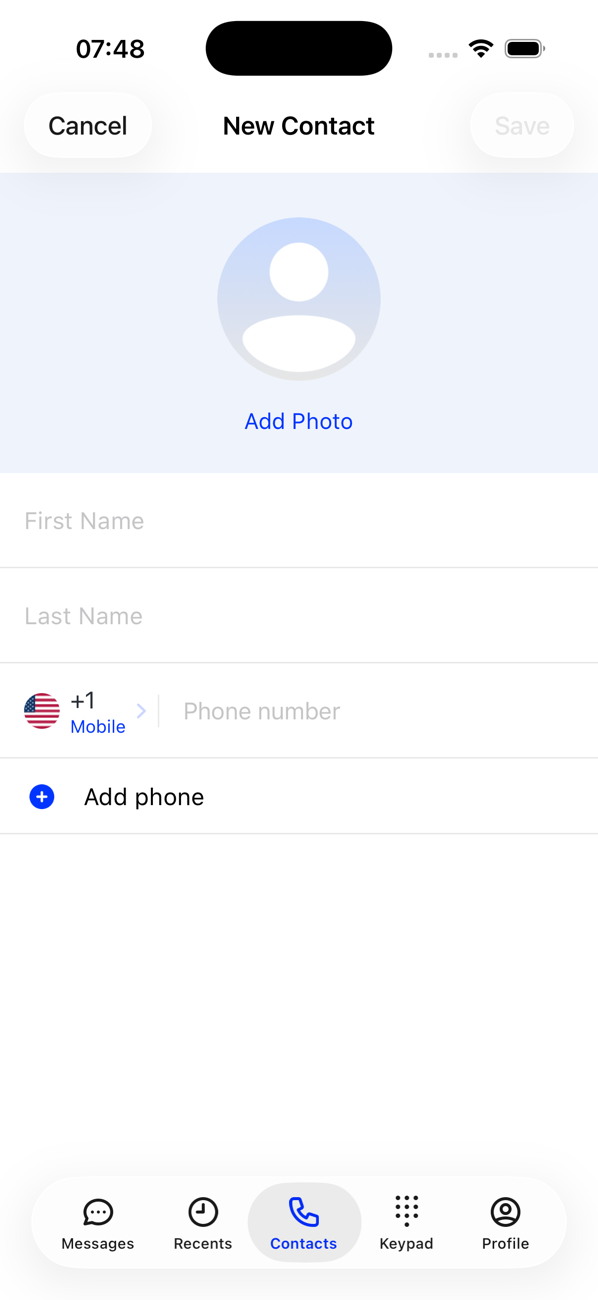
Tap +. On the New Contact screen enter a First Name and at least one phone number: pick the country code, type the number and choose its type, such as mobile or work. A last name and a photo from your library are optional; tap + again for more numbers.
3Save
Tap Save. The contact appears in the list, in the A–Z index and in search.
4Use it
Tap the contact to open their profile: call, message or send a voice note, video call if they are a Second Phone user, edit the details, or Share contact as a contact card.


Good to know
- Save a number straight from the Keypad with Add to Contacts, or tap an unsaved number at the top of a conversation.
- Deleting a contact also removes its photo from our servers.