
Getting started
Create your account and sign in
Install the app, accept the privacy notice, grant the permissions it needs and sign in with Apple, your phone number or Google.
Before you start
- An iPhone or Android phone with a data or Wi-Fi connection
Steps
1Install and open Second Phone
Download the app from the App Store or Google Play and open it. Swipe through the short introduction, or skip it.
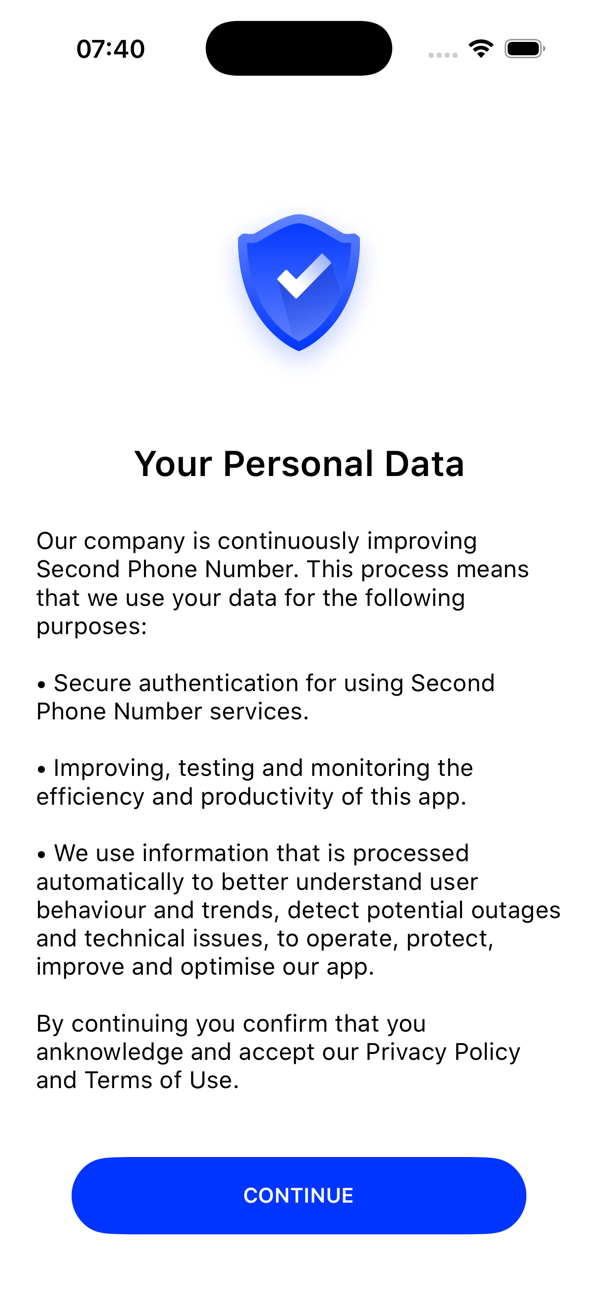
2Accept the privacy notice
The app explains what it uses your data for. Read it and tap CONTINUE. Your acceptance is recorded once, when your account is created.
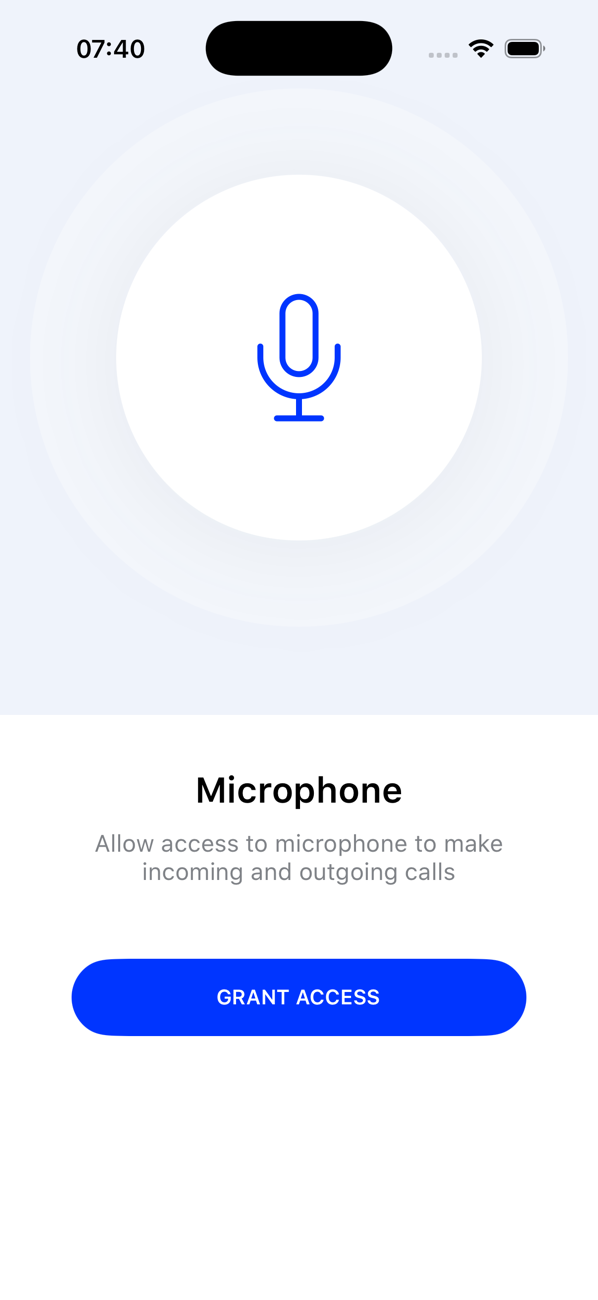
3Allow the permissions the app needs
Allow the microphone, for calls and voice notes, and notifications, so you hear about incoming calls and messages. On iPhone, Apple's tracking prompt appears too; you can decline it. Everything can be changed later in your phone's settings.
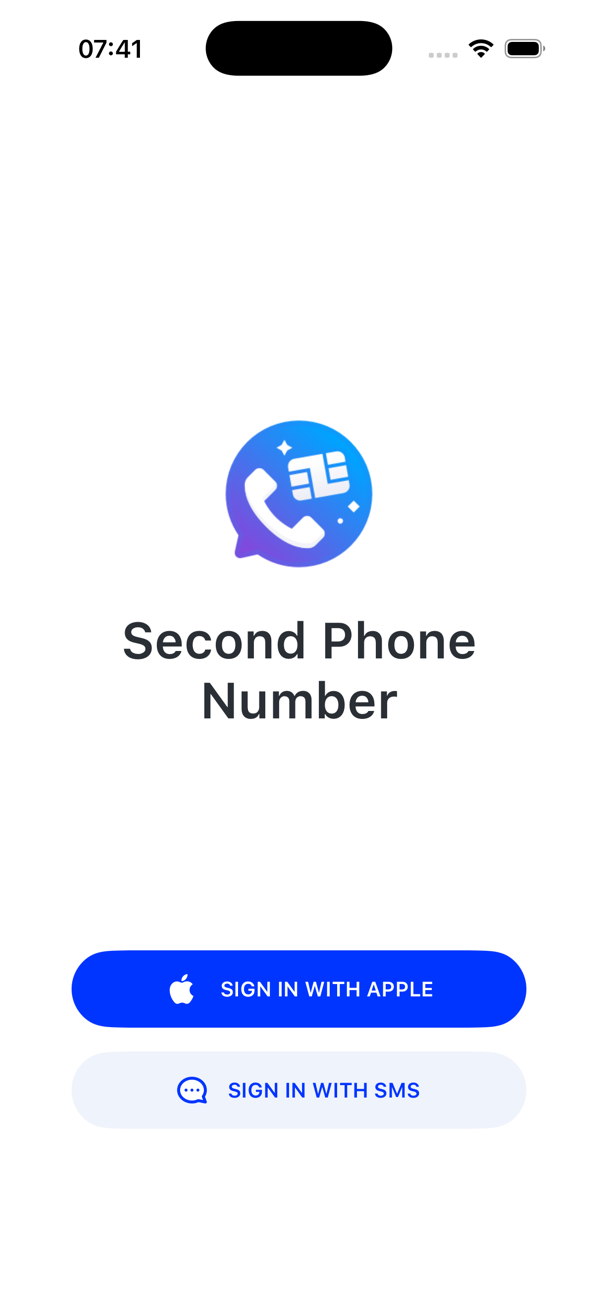
4Sign in
iPhone: tap SIGN IN WITH APPLE and choose whether to share or hide your email address, or choose the phone-number option: pick your country code, enter your mobile number and tap PROCEED.
Android: tap Sign in with Google and choose your Google account.
5Enter the verification code (phone-number sign-in)
Type the 4-digit code from the text message we send you. If it does not arrive, check the number and tap Resend Code. Resends are limited: after three you wait five minutes, after three more, ten.

6You are in
Your Profile opens. Until you have a number it says You have no active phone numbers yet, and the Messages, Keypad and Recents tabs stay greyed out. The next guide gets you a number.


Good to know
- Use the same sign-in on a new phone and your numbers come with you.
- You can only have one Second Phone account per Apple, Google or phone-number identity; the app tells you if one already exists.
- Settings → Logout signs you out without touching your numbers.