
Your numbers
Rename a number, set auto-renew, switch it off or delete it
Everything about a number lives in its settings, opened by tapping its card on your Profile.
Before you start
- A number on your Profile
Steps
1Rename it
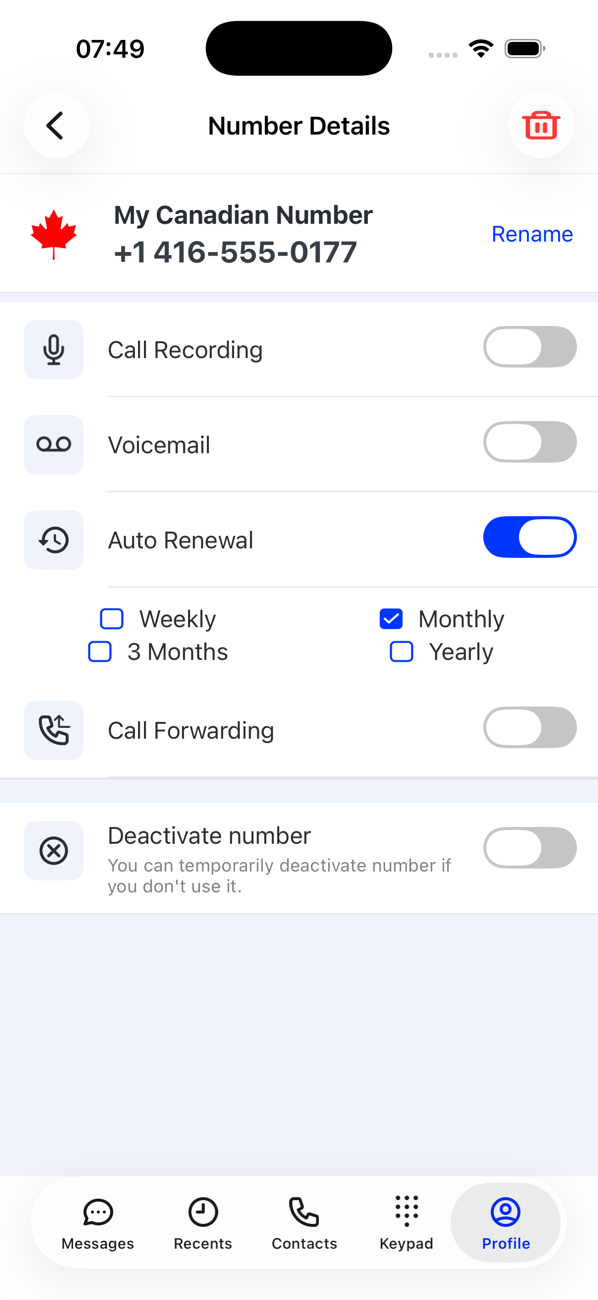
Tap the number, then Rename. Enter a name of up to 20 characters, such as Work or Lisbon flat, and tap OK. The real number stays visible in smaller text beneath the name; delete the name to show the number alone.
2Set auto-renew (extra numbers)
In the same settings, switch Auto Renewal on to renew the number from your coin balance when its term ends, or off to let it lapse. Your primary number renews through your subscription instead.
3Switch it off and on
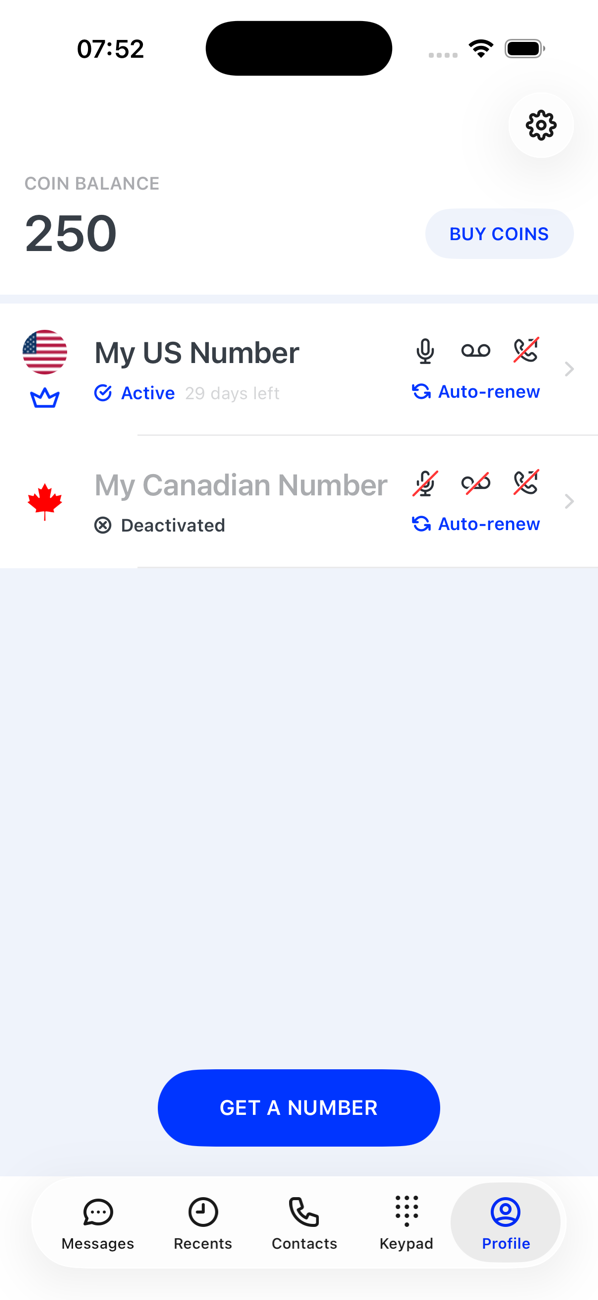
On your Profile, swipe left on the card and tap Deactivate; the number stops taking calls and messages and shows Number is Deactivated. Swipe again and tap Activate to bring it back. The same switch is in the number's settings.
4Delete it
For an extra number, tap the bin icon at the top right of its settings and confirm Delete Number. Expired and Draft numbers can be deleted by swiping left on their card. An active primary number cannot be deleted; use Replace Number in its settings if you want a different one (once for free).


Good to know
- A deleted number is released and cannot be recovered, so make sure nobody important still has it.
- Deactivating does not stop a subscription or an auto-renewal; it only pauses the number.