
Messages
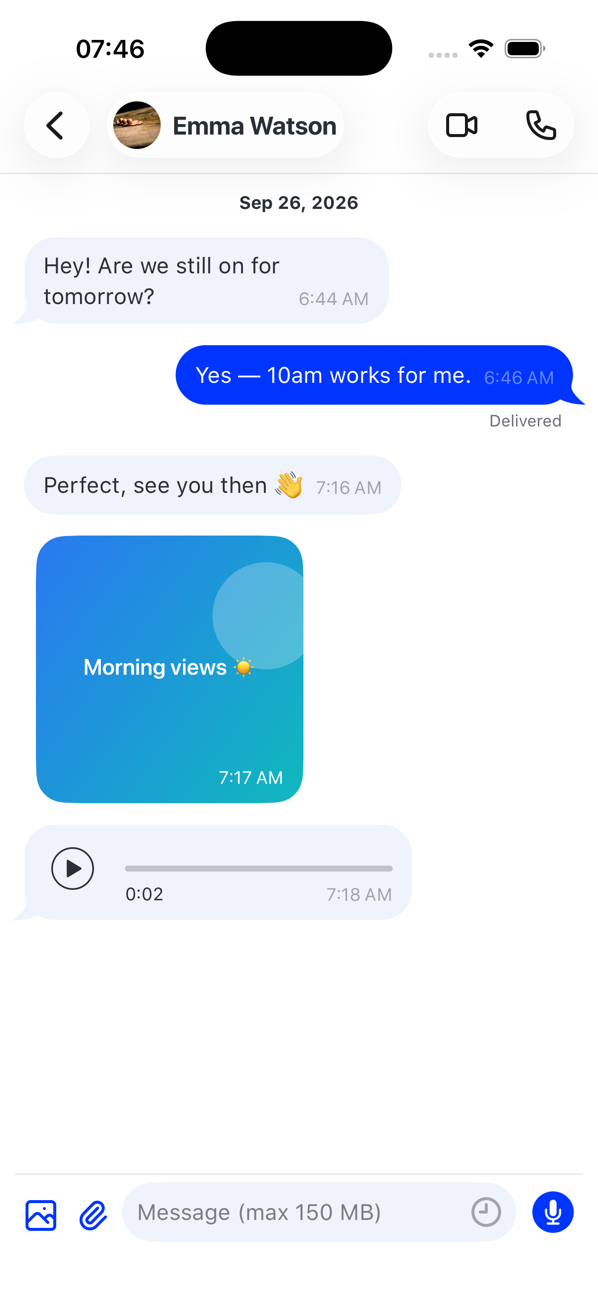
Send a photo, video, file or voice note
Attach media to a conversation, or hold the microphone to record a voice note.
Before you start
- A conversation with an MMS-capable number or a Second Phone user
Steps
1Open the conversation
Tap the conversation in Messages, or start a new one.
2Attach a photo, video or file
Tap the attachment button next to the message field and choose Photo, Video or File. Pick from your library or take a new photo; the first time, the app asks for permission to use your photos or camera.
3Record a voice note
Press and hold the microphone: Hold to record, release to send. Let go to send, or slide away to cancel.
4Watch it go
A progress bar shows the upload; tap it to cancel. The message then shows sent and delivered like any other.

Good to know
- Media to an ordinary phone number goes as MMS, which has a small size limit (about 600 KB). Chats with other Second Phone users allow far larger files.
- Some carriers cannot play the voice-note audio format; the app warns you when that may be the case.